When a small DNS edit becomes a large investigation
A website migration changes an A record. An email provider needs a new MX record. A colleague removes a TXT record while cleaning up a zone. The useful question is not simply whether DNS changed: it is which resource changed, which sources observed it and whether the new answer matches your intention.
DNStracr monitors the hostname and record types you enable. Its history lets you compare before and after and relate changes to incidents. Discovery provides suggestions; it does not silently turn every record into a monitor.
Example: a migration with an unexpected address
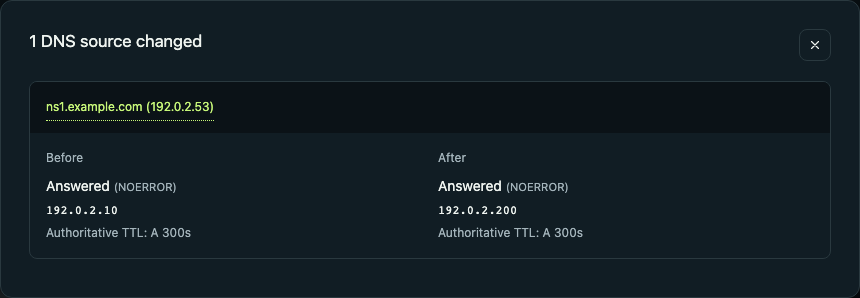
The following fictional example uses reserved documentation addresses. You intend www.example.com to move to 192.0.2.20. An authoritative answer instead changes to 192.0.2.200. Both answers exist, so a presence-only check would not establish that the migration was correct.
To try this workflow, use a test hostname in a domain you own and addresses suitable for your test service. Enable an expected-value monitor, let the original answer establish history, then make a deliberate edit at your DNS provider. Wait for the configured checks and change confirmation before opening Changes.
Resource: www.example.com · A
Before:   192.0.2.10
Intended: 192.0.2.20
Observed: 192.0.2.200
- Select the hostname and A record as a monitored resource.
- Configure the expected answer and review the selected DNS sources.
- Compare the observed change with the deployment plan; investigate confirmed failures.
- Correct DNS at your provider and follow subsequent checks through recovery.
Use a DNS change log to review record changes
A DNS change log records observed changes over time. In DNStracr, a confirmed change identifies the monitored hostname and record type, its confirmation time and the sources whose answers changed. Expand the before-and-after evidence to see the difference rather than relying on an alert alone.
To audit DNS record changes during the migration above, compare the observed address with the approved deployment and check subsequent recovery. The confirmation time is when monitoring confirmed the change, not necessarily when someone edited the zone. For who made the edit and through which account or API, use your DNS provider's audit logs alongside this evidence.
- Open Changes for the organization, or the domain History tab for a narrower view.
- Identify the hostname, record type and time, then expand the changed sources and before/after answers.
- Compare the change with your deployment record and provider audit logs; record whether it was intended.
- Review related incidents and later checks before concluding that the intended DNS state has recovered.
Choose expectations that fit your infrastructure
A fixed server address and a CDN need different rules. For a fixed address, expected values can make a wrong but present record visible. For a CDN or GeoDNS service, acceptable resolver variation can be intentional. Review authoritative differences separately rather than treating all disagreement as a harmless cache effect.
Incident confirmation over consecutive checks reduces noise, but also affects detection time. Choose intervals and confirmation settings that suit the resource instead of assuming every change deserves an immediate alert.
What this can and cannot prove
Monitoring samples DNS at configured intervals. It cannot promise to capture every edit between checks or identify the person who made an edit. DNS history is not a replacement for provider audit logs.
A correct DNS answer does not establish website availability, TLS validity or successful email delivery. The free scan is an initial nameserver, DNSSEC and email DNS snapshot; ongoing record history requires enabled monitors in the app.
Technical reference: DNS caching and authoritative data — RFC 1034. Reviewed 20 October 2026.
Put this into practice
- Follow incidents and DNS history — Find confirmed changes, source evidence and recovery in the timeline.
- Understand monitoring rules — Choose the expected answers and sources for each monitored resource.
YOUR NEXT STEP
Build a DNS change history.
Create an account, add your domain and enable the records you want to monitor. History starts with those checks; it cannot reconstruct earlier DNS changes.
Create your free accountFree plan: 3 domains, 15 active monitors and 1 member per organization. Minimum check interval: 60 minutes. Paid plans and checkout are not available.
Scan your domain free ↗The free scan shows one public DNS snapshot, not a continuous change history.